


How to Backup and Restore PostgreSQL using the pgBackrest tool


Certifications:

As we have seen in previous articles in older versions of PostgreSQL before version 17 there was no possibility for block level backup as a result we could not do differential and incremental backups and we had to take full backup every day. Also the management of backups and restore / recovery through WALs (archive logs) was complicated. These two problems can be solved by using a 3rd party tool of pgBackrest.
The installation steps
To install it on a Unix version Oracle Linux / Red Hat, run the following command:
sudo yum install pgbackrest --nogpgcheck -y
After the installation is complete, to see that it has been installed successfully, we can check the version with the following command:
pgbackrest version
Then we create the folders where the backups will be stored and give them the correct permissions:
sudo mkdir -p /var/lib/pgbackrest
sudo chmod 750 /var/lib/pgbackrest
sudo chown postgres:postgres /var/lib/pgbackrest
With the following command we find the path where PostgreSQL is installed, we will need it later:
sudo -u postgres psql -c "SHOW data_directory;"
Then we modify the configuration file, as follows: repo1-path the location where the backups will be stored, as repo1-process-max is the parallelism we allow him, as repo1-retention-full is how many backups we want to keep, below we define the name of the backupset, for our example I have said postdb11 and below as pg1-path we put the path where PostgreSQL is installed:
sudo vi /etc/pgbackrest.conf
[global]
repo1-path=/var/lib/pgbackrest
repo1-retention-full=2
process-max=2

[postdb11]
pg1-path=/var/lib/pgsql/11/data
We need to give this file the correct permissions:
sudo chown postgres:postgres /etc/pgbackrest.conf
sudo chmod 640 /etc/pgbackrest.conf
Then we go to the PostgreSQL configuration file where we will need to set some parameters:
sudo vi /var/lib/pgsql/11/data/postgresql.conf
Let's go down to the category. # – Archiving and add the following:
# - Archiving -

archive_mode = on               # enables archiving; off, on, or always

archive_command = 'pgbackrest --stanza=postdb11 archive-push %p'
As well as the wal_level:
wal_level = replicaThen we will need to restart the PostgresSQL service:
sudo systemctl restart postgresql-11
How backups are performed via pgBackrest
To now perform a backup, we must first create the backup set with the name we gave in the configuration file, in our case with the name postdb11:
sudo -u postgres pgbackrest --stanza=postdb11 stanza-create
To take a full backup, run the following command:
sudo -u postgres pgbackrest --stanza=postdb11 --type=full backup
If we want to click on it and take a differential backup, we run the following:
sudo -u postgres pgbackrest --stanza=postdb11 --type=diff backup
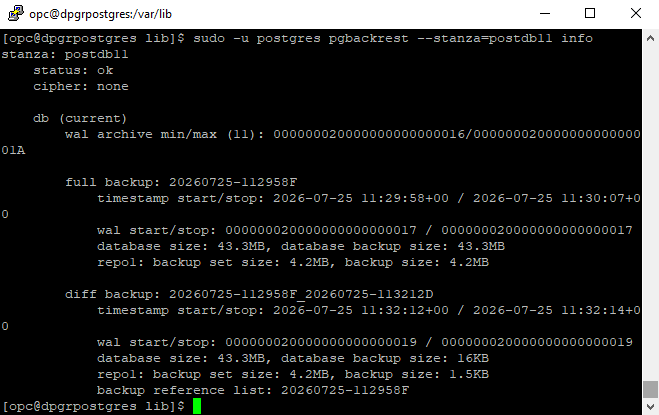
Now to see what backups have been performed and we have, we run the command:
sudo -u postgres pgbackrest --stanza=postdb11 info
Adding a process to a scheduler (cronjob)
We can now simply add two jobs to automate the backup process with a full backup every Sunday at 11:00 PM and differential backups on the other days.
To give this we need to add the following to crontab:
sudo -u postgres crontab -e
# Full Backup
0 23 * * 0 pgbackrest --stanza=postdb11 --type=full backup >> /var/log/pgbackrest/backup-full.log 2>&1

# Differential Backup
0 23 * * 1-6 pgbackrest --stanza=postdb11 --type=diff backup >> /var/log/pgbackrest/backup-diff.log 2>&1
How to restore the database using pgBackrest
First we stop the service:
sudo systemctl stop postgresql-11
We delete the database files for the example:
sudo -u postgres rm -rf /var/lib/pgsql/11/data/*
To start the restore, run the following command with the parameter target we can do Point In Time Restore:
sudo -u postgres pgbackrest --stanza=postdb11 restore --type=time --target="2026-07-25 23:30:00"
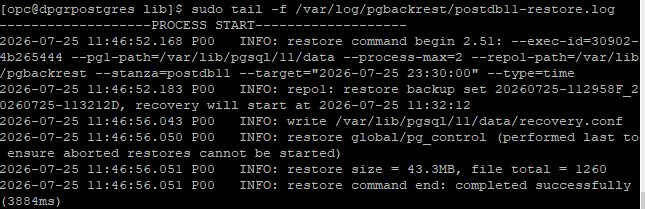
To see the restore log, run the following:
sudo tail -f /var/log/pgbackrest/postdb11-restore.log
To view the PostgreSQL log, run the following:
sudo journalctl -u postgresql-11.service -e --no-pager